Smart Wristband
User's Manual
Wear it properly
The wristband is best worn after the ulnar styloid
Adjust the size of the wrist according to the adjustment hole; Buckle belt buckle.
The sensor should be close to the skin to avoid moving.
Charge the bracelet
For the first time, make sure that the battery is in normal power. If the power is not turned on normally, please connect the charger to charge the device, and the bracelet will automatically turn on.
System Requirements: Android 5.0 or above; iOS9.0 or above; Support for Bluetooth 4.0.
Device connection
For the first use, you need to connect to the APP for calibration. After the connection is successful, the bracelet will automatically synchronize the time
Turn on the Bluetooth switch of the mobile phone system → enter the app device module settings → click bind device, experience more functions to enter, it will automatically search for the nearby Bluetooth device, find the bracelet device and connect it.
- After the pairing is successful, the APP will automatically save the Bluetooth address of the bracelet. When the APP is opened or running in the background, it will automatically search and connect the bracelet;
- Android phones use all notification permissions such as contact information and mobile app settings to run in the background
Bracelet function description
- When the device is turned off, touch and hold the function button for more than 3 seconds to turn the device on
- More menu-long press the shutdown menu to enter the shutdown interface
- Under the power on state, touch the short press function key to light up the screen
- When the device is turned on, touch the function key to light the screen;
- Switch to the heart rate three-in-one interface to start the test, heart rate three-in-one interface 60s timeout automatically off screen (heart rate and blood pressure need bracelet hardware support)
Clock interface
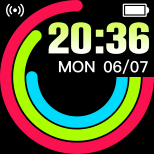
After syncing with the phone, the bracelet will automatically calibrate the time.
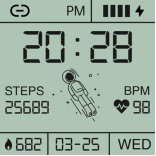
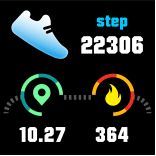
( tracks Step)Number of steps
Wear the bracelet and record the number of daily movement steps to view the current real-time steps.
As shown in the following figure:
Distance
The distance of motion is estimated based on the number of walking steps.
Calorie
Estimate the calories burned based on the number of walking steps
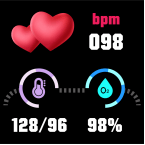
Heart rate, blood pressure, blood oxygen three-in-one
After entering the heart rate three-in-one test interface for a few seconds, the current heart rate, blood pressure, and blood oxygen test results are displayed. This feature requires a wristband to support heart rate and blood pressure sensors
As shown in the following figure:
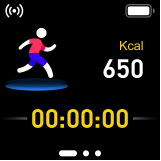
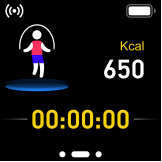
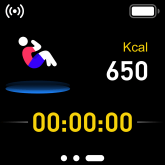
Multi-sport mode
After all exercise modes are activated, calories consumed and duration can be recorded;
As shown in the following figure:

Sleep mode
When you fall asleep, the bracelet will automatically enter the sleep monitoring mode; it will automatically detect the number of deep sleep/light sleep/waking up throughout the night and calculate your sleep quality; the sleep data bracelet will only view the total duration of deep sleep and light sleep. For details, please View on the APP side.
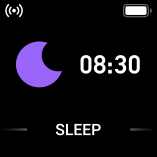
Note: Sleep data will only be available when you wear the bracelet when you fall asleep. Sleep will be detected from 10 o'clock in the evening. Sleep data for 34 hours of falling asleep can be synchronized to the app while you sleep.
Music player
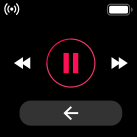
Successfully connected to the APP, the band can start the music player (play/pause/up and down song function control)
As shown in the following figure:

Weather
If the APP is successfully connected, the bracelet can obtain the current weather data, and the APP setting-personal information-can set the temperature unit switch (the conversion between Celsius and Fahrenheit)
As shown in the following figure:
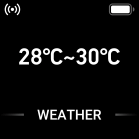
Note: When connecting to the APP, please be sure to turn on the phone location function
Custom watch face
You need to connect to the APP to get the dial settings, you can choose the recommended dial/photo album custom dial to synchronize to the bracelet
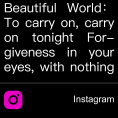
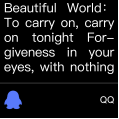
Information mode
When the bracelet pushes multiple reminder messages, enter this interface to view the latest message record
As shown in the following figure:







APP function and settings
Personal information
Please set your personal information after entering the app.
Settings → Personal Information, you can set gender - age - height - weight
You can also set your daily goal steps to monitor daily completions
Application push
Incoming call:
In the connected state, if the call alert function is enabled, when the call comes in, the wristband will vibrate and display the name or number of the caller.(You need to give APP read address book permission)
As shown in the following figure:
SMS notification:
In the connected state, if the SMS reminder function is enabled, the bracelet will vibrate when there is a text message.(Same information mode)
Other reminders:
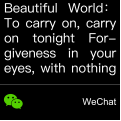
In the connected state, if this function is enabled, when there is a message such as WeChat, QQ, Facebook, etc., the bracelet will vibrate to remind and display the content received by the app.(You need to give the APP permission to get system notifications. The wristband can display 20-40 words).(Same information mode)
Other functions:
Turn on vibration to set this function,When there is a call, message or other reminder, the bracelet will vibrate. If it is closed, the bracelet will only have a screen reminder without shaking to avoid disturbing.
Tips for Android users: When using the reminder function, you need to set it to allow "FitPro" to run in the background; it is recommended to add "FitPro" to the rights management and open all permissions.
Alarm setting
In the connected state, 8 alarms can be set. After setting, it will be synchronized to the bracelet; offline alarm is supported. After the synchronization is successful, even if the APP is not connected, the bracelet will be reminded according to the set time.
As shown in the following figure:
Looking for a bracelet
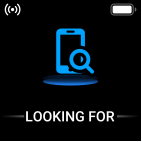
In the connected state, click the "Look for the bracelet" option and the bracelet will vibrate.
As shown in the following figure:
Remote photography
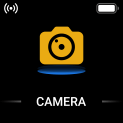
In the connected state, the app end enters the remote camera interface, shakes the wristband/turns the wrist, and automatically takes a photo after 3 seconds of counting down. Please allow the APP to access the album to save the self-portrait photos. (Note When taking a remote control photo, the bracelet can not operate other functions, the app should exit the camera function)
As shown in the following figure:
Sedentary reminder
Set whether to enable the sedentary reminder function, you can set the reminder interval, if you sit for a long time in the set time, the bracelet will remind.
As shown in the following figure:

Raise your hand to brighten
Turn this function on. When the wristband is in the state of the screen, lift your wrist and turn the screen to yourself to light up the screen.
Do not disturb mode
Turn on the Do Not Disturb mode. You can set the Do not disturb time period. During the set time period, the bracelet stops receiving notification messages to avoid reminding messages.
Device reset
Setting this feature reset will erase all data in the bracelet (such as step counting)
Remove device
Remove device This feature will erase data and remove device
Basic parameters
| Parameter | Value | Parameter | Value |
|---|---|---|---|
| Equipment type | smart wristband | Type of battery | Lithium polymer |
| Vibration motor | support | method of synchronization | Bluetooth 4.0 |
| Operating temperature | -10℃~50℃ | sensor | Low power accelerometer |
| System Requirements | iOS9.0 and above Android 5.0 and above | ||
Precautions
- Bathing and swimming should not be worn.
- Please Connect the bracelet when synchronizing data.
- Use the included charging cable to charge.
- Do not expose the bracelet to high moisture, high temperature, or very low temperatures for long periods of time
- The bracelet appears to crash and restart. Please Check the phone memory information clear and try again, or exit the APP and reopen it.
Component introduction
*Host *Wrist strap *Charging cable *Packing box and instructions